

4.1 Digital Input and Output
Introduction
Digital and analog input/output are fundamental concepts in Arduino programming and electronics. They allow an Arduino board to receive information from electronic components and sensors and to control output devices such as LEDs, buzzers, motors, and displays.
Arduino boards interact with the physical world through their input/output pins. Digital signals have discrete states, normally HIGH and LOW, while analog signals can represent a range of values. Understanding these concepts enables learners to build practical systems such as automatic lighting, temperature monitoring, alarm systems, and sensor-based control systems.
4.1 Digital Input and Output
4.1.1 Digital Signals
A digital signal has two main states:
- HIGH – represents a logical ON state.
- LOW – represents a logical OFF state.
For example, a push button can provide a digital input, while an LED can be controlled using a digital output.
Digital Output
A digital output is used when the Arduino needs to control a device. The most common functions are:
pinMode(pin, OUTPUT);
digitalWrite(pin, HIGH);
digitalWrite(pin, LOW);
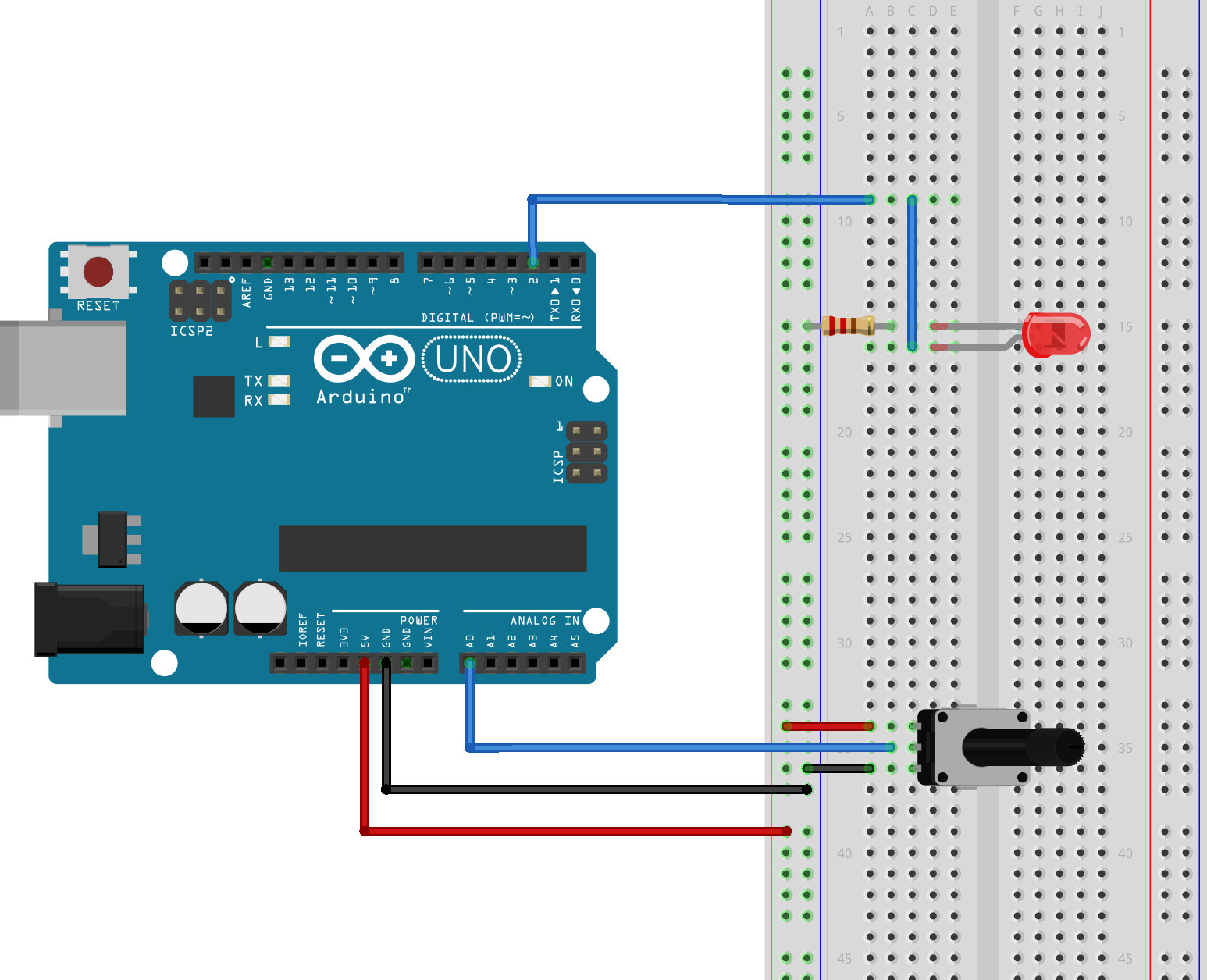
Example: Turning an LED ON and OFF
int ledPin = 13;
void setup() {
pinMode(ledPin, OUTPUT);
}
void loop() {
digitalWrite(ledPin, HIGH);
delay(1000);
digitalWrite(ledPin, LOW);
delay(1000);
}
The LED remains ON for one second and OFF for one second repeatedly.
Digital Input
Digital input allows the Arduino to read the state of a device such as a push button or switch.
The pin is configured using:
pinMode(pin, INPUT);
The state can then be read using:
digitalRead(pin);
Example:
int buttonPin = 2;
int buttonState;
void setup() {
pinMode(buttonPin, INPUT);
Serial.begin(9600);
}
void loop() {
buttonState = digitalRead(buttonPin);
Serial.println(buttonState);
}
The Arduino reads whether the button is in a HIGH or LOW state.
Using the Internal Pull-Up Resistor
Arduino can activate an internal pull-up resistor:
pinMode(buttonPin, INPUT_PULLUP);
This can simplify button circuits because an external pull-up resistor may not be required.

You may also like

Nyereka Tech and Tumba College Explore Opportunities for Collaboration
The Launch of our IoT Innovation Hub