


2. 4 Arduino IDE Installation
2.4.1 What is Arduino IDE?
Arduino IDE stands for Arduino Integrated Development Environment.
It is software used to:
- Write Arduino programs
- Edit programs
- Compile programs
- Check for programming errors
- Select an Arduino board
- Select a communication port
- Upload programs
- Monitor serial communication
Arduino programs are commonly called sketches.
2.4.2 Arduino IDE Interface
The Arduino IDE contains several important areas.
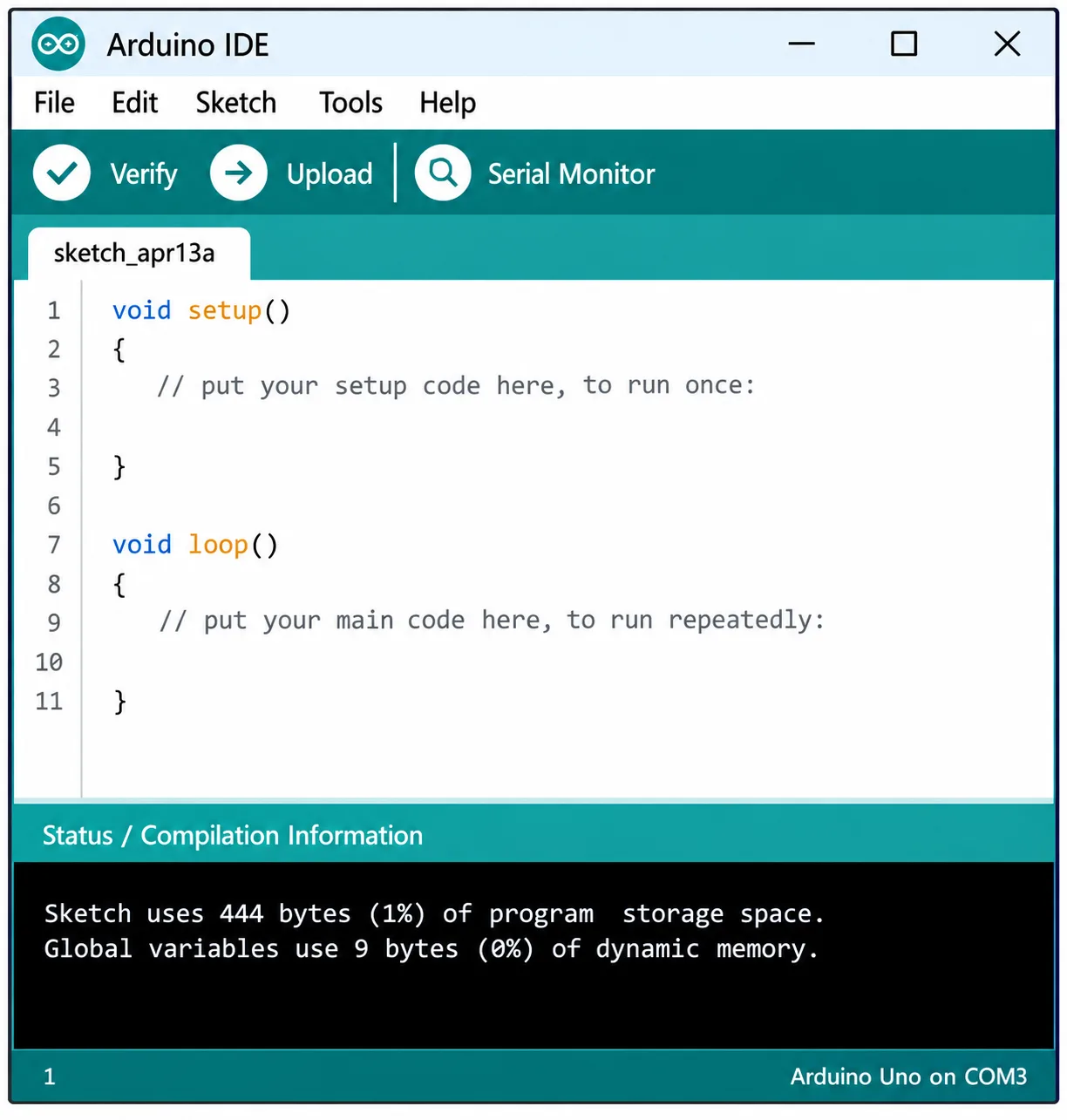
2.4.3 Main Arduino IDE Functions
Verify
The Verify function checks the program for errors and compiles it.
Upload
The Upload function compiles the program and transfers it to the Arduino board.
Serial Monitor
The Serial Monitor allows the user to communicate with the Arduino through serial communication.
It is useful for:
- Displaying sensor readings
- Debugging
- Monitoring system operation
- Sending commands
2.4.4 Installing Arduino IDE
Step 1: Obtain Arduino IDE
Download the Arduino IDE from the official Arduino software resources.
Choose the appropriate version for the operating system.
Common operating systems include:
- Windows
- macOS
- Linux
Step 2: Install the Software
After downloading:
- Open the installer.
- Accept the license agreement if required.
- Select the installation location.
- Continue with the installation.
- Allow required drivers or components to be installed.
- Complete the installation.
Step 3: Launch Arduino IDE
Open Arduino IDE from the computer’s Start menu or application menu.
Step 4: Connect Arduino Board
Connect the Arduino Uno to the computer using a suitable USB cable.
Computer
    │
    │ USB Cable
    ↓
Arduino Uno
Step 5: Select the Board
In the Arduino IDE, select the correct board.
For an Arduino Uno, select:
Arduino Uno
Step 6: Select the Port
Select the serial/USB port corresponding to the connected Arduino.
The port may appear differently depending on the operating system, for example:
COM3
COM4
COM5
2.4.5 Arduino IDE Installation Problems
Some common problems include:
Problem 1: Arduino is not detected
Possible causes:
- Faulty USB cable
- Incorrect driver
- USB port problem
- Board not powered
- Damaged board
Solution
Try:
- Another USB cable
- Another USB port
- Restarting Arduino IDE
- Checking the device/port list
- Installing the appropriate board support or driver if required
Problem 2: Upload fails
Possible causes:
- Wrong board selected
- Wrong port selected
- USB communication problem
- Another application using the serial port
- Incorrect bootloader/board configuration
Solution
Check:
- Board selection
- Port selection
- USB connection
- Serial-port availability
- Program compilation status

You may also like

Nyereka Tech and Tumba College Explore Opportunities for Collaboration

The Launch of our IoT Innovation Hub