


2. 5 Writing and Uploading the First Program
2.5.1 Arduino Program Structure
A basic Arduino program normally contains two important functions:
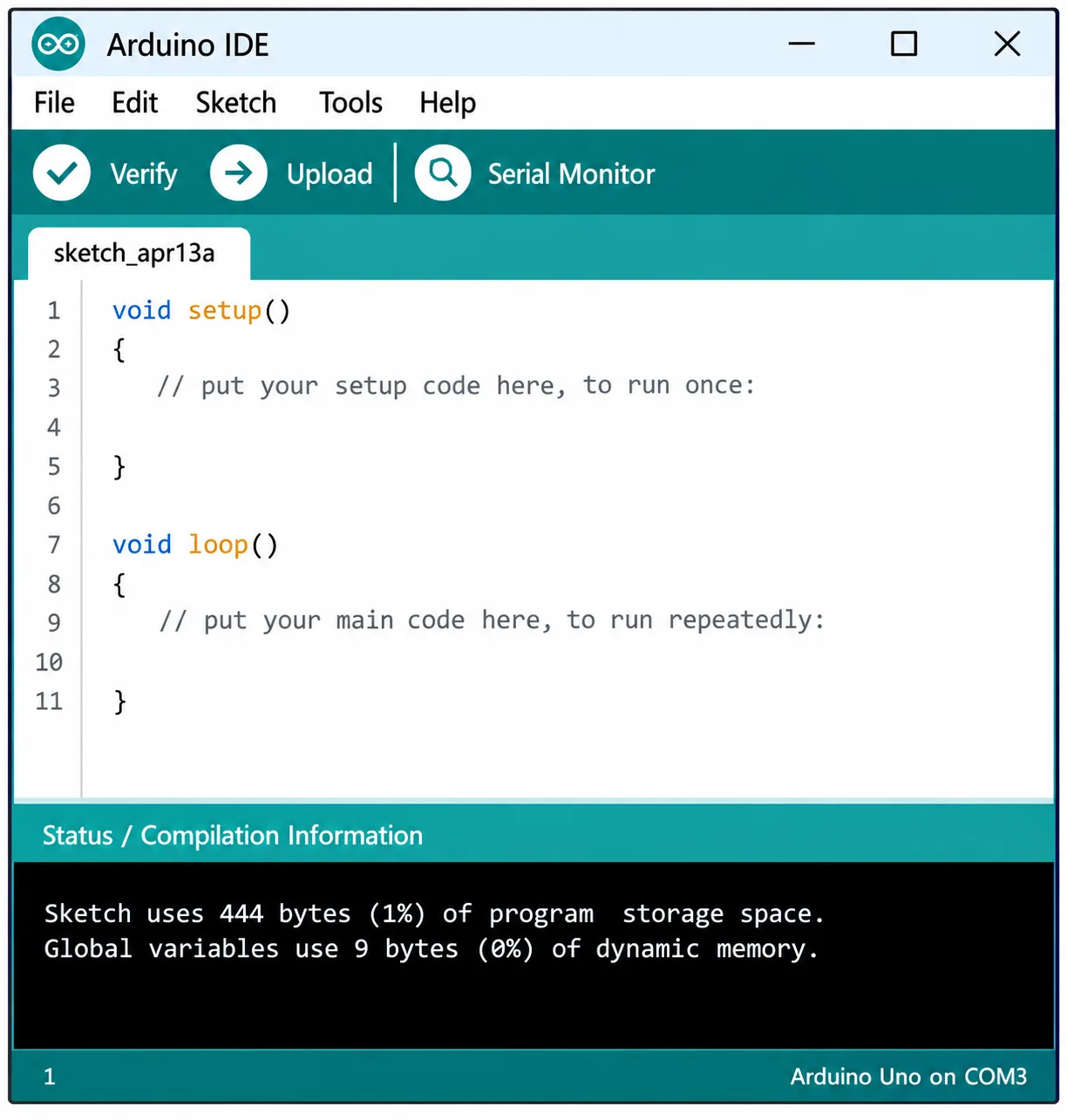
setup()
The setup() function runs once when the Arduino starts or resets.
It is normally used for:
- Pin configuration
- Starting serial communication
- Initializing sensors
- Initializing displays
- Setting initial values
loop()
The loop() function runs repeatedly as long as the Arduino is powered.
For example:
setup()
   ↓
loop()
   ↓
loop()
   ↓
loop()
   ↓
loop()
   ↓
...One of the most common first Arduino programs is the Blink program.
void setup()
{
  pinMode(LED_BUILTIN, OUTPUT);
}

void loop()
{
  digitalWrite(LED_BUILTIN, HIGH);
  delay(1000);

  digitalWrite(LED_BUILTIN, LOW);
  delay(1000);
}void setup()
void setup()Defines the setup function.
pinMode()
pinMode(LED_BUILTIN, OUTPUT);Configures the built-in LED pin as an output.
digitalWrite()
digitalWrite(LED_BUILTIN, HIGH);Turns the LED ON.
digitalWrite(LED_BUILTIN, LOW);Turns the LED OFF.
delay()
delay(1000);Pauses the program for 1000 milliseconds, which is equal to 1 second.
Therefore:
LED ON  → 1 second
LED OFF → 1 second
The process repeats continuously.
2.5.4 Steps for Uploading the Program
Step 1: Connect the Arduino
Connect the Arduino Uno to the computer using USB.
Step 2: Open Arduino IDE
Start the Arduino IDE.
Step 3: Create a New Sketch
Select:
File → New Sketch
Step 4: Enter the Program
Type or paste:
void setup()
{
  pinMode(LED_BUILTIN, OUTPUT);
}

void loop()
{
  digitalWrite(LED_BUILTIN, HIGH);
  delay(1000);
  digitalWrite(LED_BUILTIN, LOW);
  delay(1000);
}
Step 5: Select Board
Select the correct Arduino board.
Tools → Board → Arduino UnoStep 6: Select Port
Select the port connected to the Arduino.
Tools → Port → COMxThe exact port number depends on the computer.
Step 7: Verify the Program
Click Verify.
The IDE compiles the program and reports whether errors were found.
Step 8: Upload
Click Upload.
The IDE transfers the compiled program to the Arduino.
Step 9: Observe the LED
After successful uploading, the built-in LED should:
ON
 ↓
1 second
 ↓
OFF
 ↓
1 second
 ↓
ON
 ↓
Repeat
2.5.5 Basic Arduino Programming Commands
| Command | Function |
|---|---|
pinMode() |
Configures a pin as input or output |
digitalWrite() |
Sets a digital output HIGH or LOW |
digitalRead() |
Reads a digital input |
analogRead() |
Reads an analog input |
analogWrite() |
Generates PWM output on supported pins |
delay() |
Pauses program execution |
Serial.begin() |
Starts serial communication |
Serial.print() |
Sends data through serial communication |
Serial.println() |
Sends data followed by a new line |
2.5.6 Example: Controlling an External LED
An external LED can be connected to an Arduino through an appropriate current-limiting resistor.
Arduino Pin 13
     │
     │
   Resistor
     │
     │
    LED
     │
     │
    GND
Example program:
int ledPin = 13;

void setup()
{
  pinMode(ledPin, OUTPUT);
}

void loop()
{
  digitalWrite(ledPin, HIGH);
  delay(500);

  digitalWrite(ledPin, LOW);
  delay(500);
}
The LED turns ON for 0.5 seconds and OFF for 0.5 seconds repeatedly.
2.5.7 Example: Reading a Push Button
Arduino can read the state of a push button.
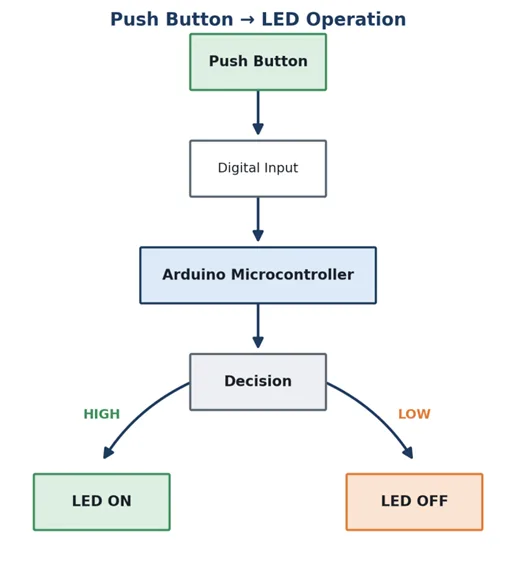
Basic operation:
Push Button
     │
     ↓
Arduino Input
     │
     ↓
Arduino Processing
     │
     ↓
LED Output
Example:
int buttonPin = 2;
int ledPin = 13;

void setup()
{
  pinMode(buttonPin, INPUT);
  pinMode(ledPin, OUTPUT);
}

void loop()
{
  int buttonState = digitalRead(buttonPin);

  if (buttonState == HIGH)
  {
    digitalWrite(ledPin, HIGH);
  }
  else
  {
    digitalWrite(ledPin, LOW);
  }
}
This program reads the push button and controls the LED according to the button state.
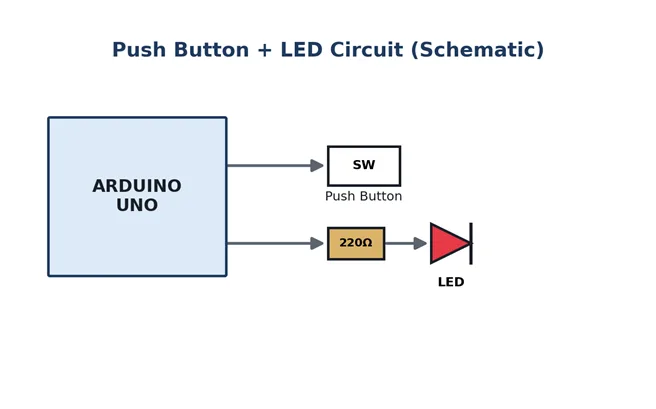
Operation
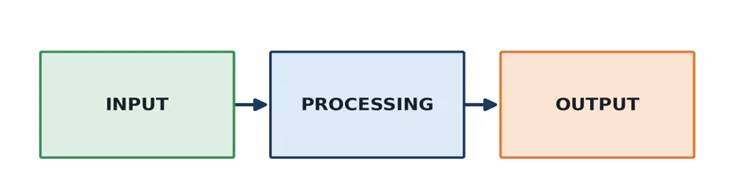
This demonstrates the fundamental embedded-system principle:
3. Automatic Night Light Using LDR
Components: Arduino Uno, LDR, LED, resistor.
Purpose: Learn analog sensor reading.
int ldrPin = A0;
int ledPin = 13;

void setup()
{
  pinMode(ledPin, OUTPUT);
  Serial.begin(9600);
}

void loop()
{
  int lightValue = analogRead(ldrPin);

  Serial.println(lightValue);

  if (lightValue < 500)
  {
    digitalWrite(ledPin, HIGH);
  }
  else
  {
    digitalWrite(ledPin, LOW);
  }

  delay(500);
}
Result: When the environment becomes dark, the LED turns ON. When there is enough light, the LED turns OFF.
The value 500 can be adjusted depending on the LDR circuit and room lighting.
4. Temperature Monitoring Using LM35
Components: Arduino Uno, LM35 temperature sensor.
Purpose: Learn analog sensor measurement and Serial Monitor.
int sensorPin = A0;

void setup()
{
  Serial.begin(9600);
}

void loop()
{
  int sensorValue = analogRead(sensorPin);

  float voltage = sensorValue * (5.0 / 1023.0);
  float temperature = voltage * 100;

  Serial.print("Temperature: ");
  Serial.print(temperature);
  Serial.println(" °C");

  delay(1000);
}
Result: The temperature is displayed on the Serial Monitor.
Set the Serial Monitor to 9600 baud.
5. Ultrasonic Distance Measurement
Components: Arduino Uno, HC-SR04 ultrasonic sensor.
Purpose: Learn sensor measurement and serial communication.
Connections
| HC-SR04 | Arduino Uno |
|---|---|
| VCC | 5V |
| GND | GND |
| TRIG | Pin 9 |
| ECHO | Pin 10 |
Code
int trigPin = 9;
int echoPin = 10;

void setup()
{
  pinMode(trigPin, OUTPUT);
  pinMode(echoPin, INPUT);

  Serial.begin(9600);
}

void loop()
{
  long duration;
  float distance;

  digitalWrite(trigPin, LOW);
  delayMicroseconds(2);

  digitalWrite(trigPin, HIGH);
  delayMicroseconds(10);

  digitalWrite(trigPin, LOW);

  duration = pulseIn(echoPin, HIGH);

  distance = duration * 0.034 / 2;

  Serial.print("Distance: ");
  Serial.print(distance);
  Serial.println(" cm");

  delay(500);
}
Result: The distance between the HC-SR04 sensor and an object is displayed in centimeters on the Serial Monitor.
Arduino Motion Detection Project Using PIR Sensor
Project: Motion Detector with PIR Sensor and LED
Level: Beginner
Board: Arduino Uno
Sensor: PIR motion sensor (such as HC-SR501)
Components
- Arduino Uno
- PIR motion sensor
- LED
- 220 Ω resistor
- Jumper wires
- Breadboard
Connections
| PIR Sensor | Arduino Uno |
|---|---|
| VCC | 5V |
| GND | GND |
| OUT | Digital Pin 2 |
LED:
| LED | Arduino Uno |
|---|---|
| Anode (+) | Pin 13 |
| Cathode (-) | GND |
Simple Code
int pirPin = 2;
int ledPin = 13;

void setup()
{
  pinMode(pirPin, INPUT);
  pinMode(ledPin, OUTPUT);

  Serial.begin(9600);
}

void loop()
{
  int motion = digitalRead(pirPin);

  if (motion == HIGH)
  {
    digitalWrite(ledPin, HIGH);

    Serial.println("Motion Detected!");
  }
  else
  {
    digitalWrite(ledPin, LOW);

    Serial.println("No Motion");
  }

  delay(500);
}
2.5.8 Arduino Programming Workflow
The general Arduino development process is:
Identify Project Requirement
          ↓
Select Arduino Board
          ↓
Connect Hardware
          ↓
Write Program
          ↓
Verify / Compile
          ↓
Correct Errors
          ↓
Select Board and Port
          ↓
Upload Program
          ↓
Test the System
          ↓
Troubleshoot
          ↓
Improve the Program
2.5.9 Common Errors and Troubleshooting
Error 1: Compilation Error
The program contains a syntax or programming error.
Example:
digitalWrite(13 HIGH);
The comma is missing.
Correct version:
digitalWrite(13, HIGH);
Error 2: Wrong Board Selected
If the wrong board is selected in the IDE, uploading may fail or the program may not work correctly.
Solution: Select the correct board under the Board menu.
Error 3: Wrong Port
If the wrong port is selected, the IDE may not communicate with the Arduino.
Solution: Check the available ports and select the one associated with the Arduino.
Error 4: USB Connection Problem
A damaged or unsuitable USB cable can prevent communication.
Solution: Try another compatible USB cable and USB port.
Error 5: LED Does Not Blink
Possible causes include:
- Program was not uploaded
- Wrong board selected
- Wrong pin used
- Hardware problem
- Incorrect wiring for an external LED
SUMMARY OF UNIT 2
Arduino is an open-source electronics platform used for developing embedded, automation, robotics, and IoT projects. An Arduino board contains a microcontroller, input/output pins, power circuits, communication interfaces, and other supporting components.
Different Arduino boards are designed for different applications. The Arduino Uno is particularly suitable for beginners because of its simple architecture, widely available learning resources, and convenient input/output features.
The Arduino Uno uses the ATmega328P microcontroller and provides digital pins, analog inputs, PWM outputs, serial communication, I²C, SPI, and other useful features.
The Arduino IDE is used to write, compile, and upload programs to an Arduino board. A basic Arduino program contains setup() and loop() functions. The setup() function executes once, while the loop() function executes repeatedly.
The first practical program normally used by beginners is the Blink program, which demonstrates how an Arduino controls a digital output.
Key Learning Chain
ARDUINO HARDWARE
↓
MICROCONTROLLER
↓
INPUT / PROCESSING / OUTPUT
↓
ARDUINO IDE
↓
WRITE SKETCH
↓
COMPILE
↓
UPLOAD
↓
TEST
↓
BUILD PRACTICAL PROJECT
This unit provides the foundation for later practical topics such as sensors, actuators, LCD displays, motors, communication modules, IoT systems, and automated control systems

You may also like

Nyereka Tech and Tumba College Explore Opportunities for Collaboration

The Launch of our IoT Innovation Hub