


Interact with Arduino sensors and displays
div class=”panel-body”>
Arduino input/output and Time Functions
1. pinMode() Function
This is a function that is used to configure a specific pin to behave either as an input or an output. This is written in the setup() function of the sketch.
Syntax
pinMode(13, INPUT);// means that this pin 13 will behave as an input
    pinMode(3, OUTPUT);// it will behave as an output
2. digitalWrite() and analogRead() Function
I. digitalWrite()
The digitalWrite() function is used to control the voltage that is output from a digital pin on the Arduino board. This is usually written in the loop() function of a sketch.
Syntax
digitalWrite(pin, value);// pin: pin number to be used, value: HIGH/LOW II. digitalRead()
The digitalRead() function reads the value from a specified digital pin, either HIGH or LOW. It will read voltage connected to the digital pin as either high or love, on or off.
digitalRead(pin);// it will read value on pinIII. analogWrite()
This function writes an analog value to a pin. It can be used to light a LED at varying brightness or drive a motor at a various speed.
analogWrite(pin, value);// pin to write to, vale: duty cycle between 0-255 IV. analogRead()
This function reads the value from specified analog pin. It will map input voltage between 0-5 volts into integer values between 0-1023.
analogRead(pin);// the number of the analog input pin to read from 0-5V 3. Incorporating Arduino time
| S.No. | Function & Description |
| 1 | delay () function It accepts a single integer (or number) argument. This number represents the time (measured in milliseconds). |
| 2 | delayMicroseconds () function The delayMicroseconds() function accepts a single integer (or number) argument. There are a thousand microseconds in a millisecond and a million microseconds in a second. |
| 3 | millis () function This function is used to return the number of milliseconds at the time, the Arduino board begins running the current program. |
| 4 | micros () function The micros() function returns the number of microseconds from the time, the Arduino board begins running the current program. This number overflows i.e. goes back to zero after approximately 70 minutes. |
Arduino Displays
Working with Serial Monitor
The Serial Monitor is a separate pop-up window that acts as a separate terminal that communicates by receiving and sending Serial Data. Your Arduino must be connected to your computer when you click this Serial Monitor.
Arduino Serial Monitor is used in Serial communication and it prints data, whatever you send through the serial port of Arduino will also be view able on this Serial Monitor.
SETUP:
In Setup you need to begin Serial Communications and set the Baud Rate (speed) that data will be transferred at. That looks like this:
Serial.begin(9600); // Other baud rates can be used...
Serial.println("My Sketch has started"); - LCD Configuration
- 16×2 LCD display
Pinout of 16×2

Pin Configuration
| Pin No: | Pin Name: | Description |
| 1 | Vss (Ground) | Ground pin connected to system ground |
| 2 | Vdd (+5 Volt) | Powers the LCD with +5V (4.7V – 5.3V) |
| 3 | VE (Contrast V) | Decides the contrast level of display. Grounded to get maximum contrast. |
| 4 | Register Select | Connected to Microcontroller to shift between command/data register |
| 5 | Read/Write | Used to read or write data. Normally grounded to write data to LCD |
| 6 | Enable | Connected to Microcontroller Pin and toggled between 1 and 0 for data acknowledgement |
| 7 | Data Pin 0 | Data pins 0 to 7 forms a 8-bit data line. They can be connected to Microcontroller to send 8-bit data.These LCD’s can also operate on 4-bit mode in such case Data pin 4,5,6 and 7 will be left free. |
| 8 | Data Pin 1 | |
| 9 | Data Pin 2 | |
| 10 | Data Pin 3 | |
| 11 | Data Pin 4 | |
| 12 | Data Pin 5 | |
| 13 | Data Pin 6 | |
| 14 | Data Pin 7 | |
| 15 | LED Positive | Backlight LED pin positive terminal |
| 16 | LED Negative | Backlight LED pin negative terminal |
Interfacing LCD with Arduino
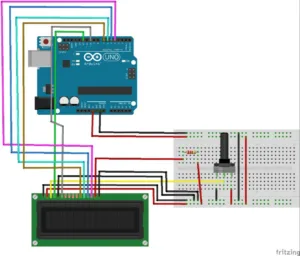
Codes of Arduino
#include <LiquidCrystal.h>
    String words;

    LiquidCrystal lcd(13,12,5,4,3,2);

    void setup()
    {
        Serial.begin(9600);
        lcd.begin(16,2);
        lcd.setCursor(0,0);
        lcd.print("Initialising.");
        delay(1000);
        lcd.clear();
        lcd.print(“Welcome”);
        delay(2000);
    }

    void loop()
    {
        lcd.clear();
        Serial.print("Enter the line : ");
        while (Serial.available()==0) {
        }
        words = Serial.readString();
        Serial.println(words);
        lcd.setCursor(0,0);
        lcd.print(words);
        delay(5000);
        Serial.println(" ");
    }
Interfacing Arduino with 20×4(I2C)
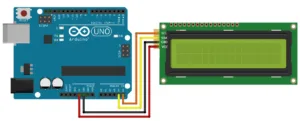
Arduino codes
#include <Wire.h>
    #include <LiquidCrystal_I2C.h> // you add the library
    LiquidCrystal_I2C lcd(0x27,20,4);// set the LCD address to 0x27 for a 16 chars and 2 line display

    void setup()
    {
      lcd.init();            // initialize the lcd
      lcd.init();
      // Print a message to the LCD.
      lcd.backlight();
      lcd.setCursor(1,0);
      lcd.print("hello everyone");
      lcd.setCursor(1,1);
      lcd.print("konichiwaa");
    }
    void loop()
    {
    }
5110 Nokia Display

The Nokia 5110 is a basic graphic LCD screen for lots of applications. It was originally intended to be used as a cell phone screen. This one is mounted on an easy to solder PCB.
It Consists of 48 rows and 84 columns (84×48) monochrome pixels
Nokia pinout

| No: | Pin Name: | Description |
| 1 | Reset | This pin resets the module. It an active low pin (resets when 0V is provided) |
| 2 | Chip Enable (CE) | This pin is made low (0V) to select this particular display when more than one SPI peripherals are used. |
| 3 | Data/Command (DC) | This pin is used to switch between Data mode (high) and Command mode (low) |
| 4 | Serial Input (DIN) | This is the input pin (MOSI) through which serial instructions are sent |
| 5 | Clock (CLK) | All SPI modules require a common clock, this clock source is supplied to this pin |
| 6 | Power (Vcc) | This pin is used to power the display the supply voltage is from 2.7V to 3.3V |
| 7 | Back Light (BL) | This pin powers the backlight of the display (3.3V maximum). |
| 8 | Ground (Gnd) | Connects to the ground of the circuit. |
Applications of Nokia 5110:
- Can be used to display alphanumeric characters and bitmap images
- Used in application where fancy graphics are required
- Requires only a maximum of 5 pins to operate hence I/O friendly
- Comes with a backlight and hence can be used even in darker environment
- Graphics are decent enough to create a basic UI
Interfacing Nokia 5110 with Arduino
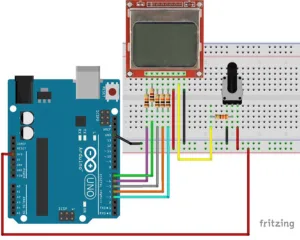
/*
    Pin 1 -> +3.3V (rightmost, when facing the display head-on)
     * Pin 2 -> Arduino digital pin 3
     * Pin 3 -> Arduino digital pin 4
     * Pin 4 -> Arduino digital pin 5
     * Pin 5 -> Arduino digital pin 7
     * Pin 6 -> Ground
     * Pin 7 -> 10uF capacitor -> Ground
     * Pin 8 -> Arduino digital pin 6
    */
    #include <PCD8544.h> // you need to add this library
     PCD8544 lcd;
    void setup() {
       lcd.begin(84, 48);
    }
    void loop() {
      lcd.setCursor(0, 0);
      lcd.print("   WELCOME  ");
      lcd.setCursor(0, 1);
      lcd.print("     To");
      lcd.setCursor(0,2);
      lcd.print(" NYEREKA TECH !!");
      delay(200);
     }
Arduino Sensors
Introduction
A sensor is a device that detects and responds to some type of input from the physical environment. The specific input could be light, heat, motion, moisture, pressure, or any one of a great number of other environmental phenomena
The output is generally a signal that is converted to human readable display at the sensor location or transmitted electronically over a network for reading or further processing
What are the Different Types of Sensors?
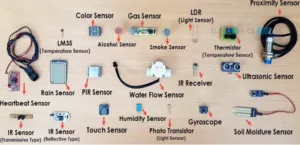
Types of sensor
- ANALOG SENSOR: Analog sensor senses the external parameters (wind speed, solar radiation, light intensity etc.) and gives analog voltage as an output. The output voltage may be in the range of 0 to 5V.
- DIGITAL SENSOR: Unlike analog sensor, Digital Sensor produce discrete values (0 and 1’s). Discrete values often called digital (binary) signals in digital communication.
TEMPERATURE SENSOR& HUMIDITY SENSOR(Analog sensor)
Humidity Sensor (DHT22) & (DHT11)
The DHT-22 (also named AM2302) is a digital-output, relative humidity, and temperature sensor. It uses a capacitive humidity sensor and a thermistor to measure the surrounding air and sends a digital signal on the data pin.

Technical Details
Power: 3-5V
Max Current: 2.5mA
Humidity: 0-100%, 2-5% accuracy
Temperature: -40 to 80°C, ±0.5°C accuracy
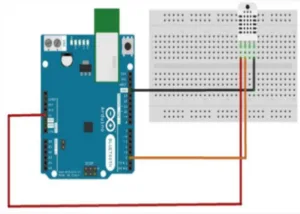
This shows how the actual connection of temperature sensor to the Arduino board
Temperature Sensors (Arduino Code)
float temp;
    int tempPin = 0;
    void setup() {
        Serial.begin(9600);
    }
    void loop() {
        temp = analogRead(tempPin); // read analog volt from sensor and save to variable temp
        temp = temp * 0.48828125; // convert the analog volt to its temperature equivalent Serial.print("TEMPERATURE = ");
        Serial.print(temp); // display temperature value
        Serial.print("*C");
        Serial.println();
        Delay(1000);      // update sensor reading each one second
    }
Arduino – PIR Sensor (Digital sensor)
PIR sensors allow you to sense motion. They are used to detect whether a human has moved in or out of the sensor’s range. They are commonly found in appliances and gadgets used at home or for businesses. They are often referred to as PIR, “Passive Infrared”, “Pyroelectric”, or “IR motion” sensors.
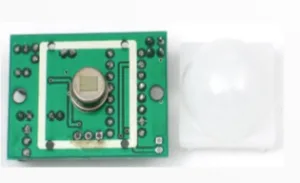
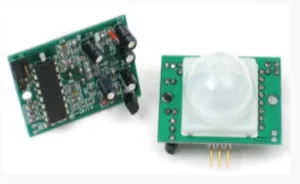
The PIR sensor itself has two slots in it, each slot is made of a special material that is sensitive to IR.
When the sensor is idle, both slots detect the same amount of IR, the ambient amount radiated from the room or walls or outdoors. When a warm body like a human or animal passes by, it first intercepts one half of the PIR sensor, which causes a positive differential change between the two halves.
When the warm body leaves the sensing area, the reverse happens, whereby the sensor generates a negative differential change. These change pulses are what is detected.

Connecting PIR sensors to a microcontroller is really simple. The PIR acts as a digital output so all you need to do is listen for the pin to flip high (detected) or low (not detected).
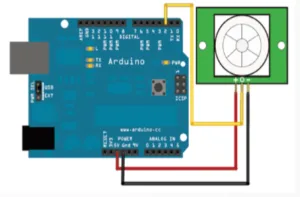
Let’s do simple project like an alarm once a person passes by then the buzzer will produce a sound.
int piezo=5; //The word “piezo or buzzer” stands for the value 5.
    int movement=7;//The word “movement” stands for the value 7.
    int movementstatus=0;//The word “movementstatus” stands for the value 0. Later //on there will be saved if a movement is detected or not
    void setup() {
        pinMode(piezo, OUTPUT);
        pinMode(movement, INPUT);  //The pin connected to the motion detector (pin 7)is
    }
    void loop() {
        movementstatus=digitalRead(movement); //The value on pin 7 is read out
        if(movementstatus==HIGH) {
        digitalWrite(piezo, HIGH);
        Delay(5000);      //..the piezo should beep /5 seconds long digitalWrite(piezo, LOW);
    }
Circuit diagram using Arduino and PIR and buzzer

Arduino – Rain Sensor/ Water Sensor (digital sensor)
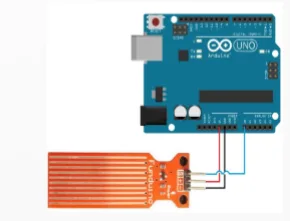
Connecting a rain sensor to an Arduino is a great way to detect a leak, spill, flood, rain, etc.
It can be used to detect the presence, the level, the volume and/or the absence of water. While this could be used to remind you to water your plants, there is a better Grove sensor for that. The sensor has an array of exposed traces, which read LOW when water is detected.
Arduino codes
#define Water_Sensor 8      // Attach Water sensor to Arduino Digital Pin 8
    #define LED 9         // Attach an LED to Digital Pin 9 (or use onboard LED)
    void setup() {
        pinMode(Water_Sensor, INPUT); // The Water Sensor is an Input
        pinMode(LED, OUTPUT);// The LED is an Output
    }
    void loop() {
        if( digitalRead(Water_Sensor) == LOW) {
        digitalWrite(LED, HIGH); }
        Else {
        digitalWrite(LED,LOW);
        }
    }
Arduino – Ultrasonic Sensor (analog sensor)

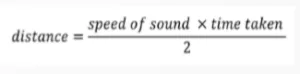
An Ultrasonic sensor is a device that can measure the distance to an object by using sound waves. It measures distance by sending out a sound wave at a specific frequency and listening for that sound wave to bounce back. By recording the elapsed time between the sound wave being generated and the sound wave bouncing back, it is possible to calculate the distance between the sonar sensor and the object.

Technical Specifications
- Power Supply: +5V DC
- Quiescent Current: <2mA
- Working Current: 15mA
- Effectual Angle: <15°
- Ranging Distance: 2cm – 400 cm/1′′ – 13f
- Resolution: 0.3 cm
- Measuring Angle: 30 degree
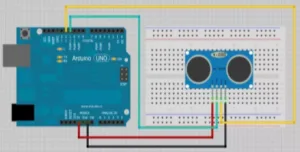
Connecting ultrasonic sensor to Arduino board CODES
Arduino codes
// FIRST WE START BY DECLARING VARIABLES
    int trigger=7; //”trigger” on pin 7.
    int echo=6;  //”echo” on pin 6.
    long time=0;
    long dist=0;
    void setup(){
    Serial.begin (9600);
        pinMode(trigger, OUTPUT);
        pinMode(echo, INPUT);
    }
    void loop() {
        digitalWrite(trigger, LOW);
        delay(5);
        digitalWrite(trigger, HIGH);
        delay(10);
        digitalWrite(trigger, LOW);
        time = pulseIn(echo, HIGH);
        dist = (time/2) / 29.1;
        if (dist >= 500 || dist <= 0)
        Serial.println("No measurement");
        }
        else {
        Serial.print(dist);
        Serial.println("cm");
        }
        Delay(1000);
    }
Arduino – Magnetic relay switches

The relay module is an electrically operated switch that allows you to turn on or off a circuit using voltage and/or current much higher than a microcontroller could handle
This picture above is a two channel relay means it can control two objects at once.
Each channel in the module has three connections named NC (normally closed), COM(ground), and NO (normally open).
Pin configuration
Each channel in the module has three connections named NC (normally closed), COM(ground), and NO (normally open).
Pin configuration

1. VCC: 5V DC
2. COM: 5V DC
3. IN1: high/low output
4. IN2: high/low output
5. GND: ground
Wiring Diagram
Interfacing Arduino respecting the pins
The components to be used are:
– Microcontroller (any compatible Arduino)
– 2 channel 5V 10A relay module
– Pin connectors
– Breadboard
– USB cable

Sample Sketch
void setup(){
        pinMode(5, OUTPUT);
        pinMode(6, OUTPUT);
    }
    void loop(){
        digitalWrite(5, LOW);
        digitalWrite(6, HIGH);
        delay(4000);
        digitalWrite(5, HIGH);
        digitalWrite(6, LOW);
        delay(4000);
}- Arduino Secondary Integrations
➢ Types of Relay


Relays are the primary protection as well as switching devices in most of the control processes or equipment. It is a switch which controls circuit electromechanically.
1. Electromagnetic relays
These are the relays constructed with electrical, mechanical and magnetic components, and have operating coil and mechanical contacts. Therefore, when the coil gets activated by supply system, these mechanical contacts gets opened or closed. The type of supply can be AC or DC.
2. Solid state relay
Solid state uses solid state components to perform the switching operation without moving any parts.
3. Hybrid relay
These relays are composed of electromagnetic relays and electronic components.
Usually the input part contains the electronic circuitry that performs rectification and the other control functions, and the output part include electromagnetic relay.
4. Thermal relay
These relay based on the effects of the heat which means the rise in the temperature from the limited number directs the contacts to switch from one position to other.
These are mainly used in motor protection.
➢ Controlling Electrical appliances with electromagnetic relays.
Electromagnetic relays are used in electrical appliances such as:
- Hair dryers
- Lights that need to be switch ON or OFF automatically
- Electrical fan
- Interfacing to Actuator
➢ What is Actuator?
Actuator is a device that turns energy (typically electrical) to motion
Features:
- Force
- Speed
- Torque
- Power
- Efficiency

Different types of actuators
➢ DC Motor
Force is produced due to the electric current in a wire inside a magnetic field. Proportional to the current, therefore can be controlled by potentiometer.
Motors convert electrical energy into physical movement. Most small direct current (DC) motors have a speed proportional to the voltage, and you can reverse the direction they move by reversing the polarity of the voltage across the motor.
Most motors need more current than the Arduino pins provide, and a component such as a transistor is required to drive the motor

The primary characteristic in selecting a motor is torque. Torque determines how much work the motor can do. Typically, higher torque motors are larger and heavier and draw more current than lower torque motors
Arduino Codes- DC MOTOR
int motorPin = 3;   // Pin 3 has PWM, connected it to the DC motor!
    void setup() {
        pinMode( motorPin, OUTPUT);    // Set motor pin to output mode!
    }
    void loop() {
        analogWrite( motorPin, 150);    // Motor at 150/255 of full speed
        delay(1000);
        analogWrite( motorPin, 250);     // Motor at 250/255 of full speed
        delay(1000);
    }
➢ STEPPER MOTOR
Stepper motor are the motor that are controlled by a series of electromagnetic coils. The center shaft has a series of magnets mounted on it
The coils are alternately given current or not, creating magnetic fields which repulse or attract the magnets on the shaft, causing the motor to rotate.
Allows for very precise control of the motor. it can be turned in very accurate steps of set degree increments
Two basic types:
- Unipolar
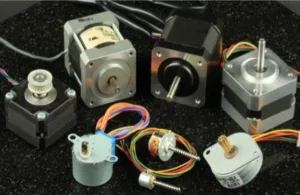
- bipolar

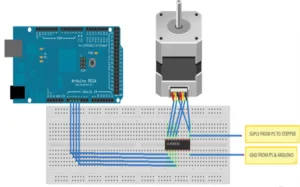
Stepper motor connected to the Arduino board

Code- Stepper Motor
int motorPin1 = 2;
    int motorPin2 = 3;
    int motorPin3 = 4;
    int motorPin4 = 5;
    int delayTime = 100;
    void setup() {
        pinMode(motorPin1, OUTPUT);
        pinMode(motorPin2, OUTPUT);
        pinMode(motorPin3, OUTPUT);
        pinMode(motorPin4, OUTPUT);
    }
    void loop() {
        digitalWrite(motorPin1, HIGH);
        digitalWrite(motorPin2, LOW);
        digitalWrite(motorPin3, LOW);
        digitalWrite(motorPin4, LOW);
        delay(delayTime);
        digitalWrite(motorPin1, LOW);
        digitalWrite(motorPin2, HIGH);
        digitalWrite(motorPin3, LOW);
        digitalWrite(motorPin4, LOW);
        delay(delayTime);
        digitalWrite(motorPin1, LOW);
        digitalWrite(motorPin2, LOW);
        digitalWrite(motorPin3, HIGH);
        digitalWrite(motorPin4, LOW);
        delay(delayTime);
        digitalWrite(motorPin1, LOW);
        digitalWrite(motorPin2, LOW);
        digitalWrite(motorPin3, LOW);
        digitalWrite(motorPin4, HIGH);
        delay(delayTime);
    }
➢ Interfacing Servo motors to Arduino
What is servo?
Servo motors is a DC motor with a control circuit that are controlled by PWM through the control pin.
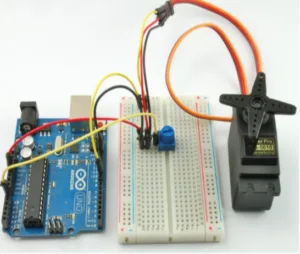
Connected servo motor to Arduino
#include <Servo.h>
    Servo servoblue;
    void setup(){
        servoblue.attach(8);
    }
    void loop() {
        servoblue.write(0);
        delay(3000);
        servoblue.write(90);
        delay(3000);
        servoblue.write(180);
        delay(3000);
        servoblue.write(20);
        delay(3000);
    }
#include <Servo.h>
Servo myservo;
int potpin = 0;
int val;
void setup() {
myservo.attach(9);
}
void loop() {
val = analogRead(potpin);
val = map(val, 0, 1023, 0, 180);
myservo.write(val);
delay(15);
}III. Giving Input to the controller
I. Using serial input
To send characters over serial from your computer to the Arduino just open the serial monitor and type something in the field next to the Send button. Press the Send button or the Enter key on your keyboard to send.
let’s dive into an example.
char input;

    void setup() {
        Serial.begin(9600); //for initializing the serial monitor
        delay(2000);
        Serial.println("Type something!");
    }

    void loop() {
        if(Serial.available()){ // checking if the serial is reading anything
            input = Serial.read();
            Serial.print("You typed: " );
            Serial.println(input);
        }
    }
There are two important functions related to the serial input in the code above, and that is Serial.available() and Serial.read().
Serial.available() returns the number of characters (i.e. bytes of data) which have arrived in the serial buffer and that are ready to be read.
Serial.read() returns the first (oldest) character in the buffer and removes that byte of data from the buffer. So when all the bytes of data are read and no new serial data have arrived, the buffer is empty and Serial.available() will return 0.
If we send more than one character over serial with this code, the output will look like this:

➢ Controlling LEDs with keys.
A circuit for lighting a LED using one push button

A circuit for lighting many LED using many push button
Materials needed:
- Arduino UNO
- 3 LEDs
- 3 resistors (1K ohm)
- 3 pushbutton
- Breadboard
- Jumpers

➢ Using a buzzer as an alarm unit
Components to be used
- Arduino UNO board
- Breadboard
- LED
- Resistor (330 Ohm,1K Ohm)
- Motion sensor
- Buzzer
- Jumpers
- pushbutton

ARDUINO CODE FOR ALARM CIRCUIT USING BUZZER
// Declaring Pins
    const int buzzerPin = 5;
    const int ledPin = 6;
    const int motionPin = 7;
    const int buttonPin = 12;

    // Setting Buzzer mode to False
    boolean buzzer_mode = false;

    // For LED
    int ledState = LOW;
    long previousMillis = 0;
    long interval = 100; // Interval at which LED blinks

    void setup()
    {
      //The Following are our output
      pinMode(ledPin, OUTPUT);
      pinMode(buzzerPin, OUTPUT);

      //Button is our Input
      pinMode(buttonPin, INPUT);

      // Wait before starting the alarm
        delay(5000);
    }

    void loop()
    {
      // To check whether the motion is detected or not
      if (digitalRead(motionPin)) {
        buzzer_mode = true;
      }

      // If alarm mode is on, blink our LED
      if (buzzer_mode){
        unsigned long currentMillis = millis();
        if(currentMillis - previousMillis > interval) {
          previousMillis = currentMillis;
          if (ledState == LOW)
            ledState = HIGH;
          else
            ledState = LOW;
        // Switch the LED
        digitalWrite(ledPin, ledState);
        }
        tone(buzzerPin,1000);
      }

      // If alarm is off
      if (buzzer_mode == false) {s

        // No tone & LED off
        noTone(buzzerPin);
        digitalWrite(ledPin, LOW);
      }

      // If our button is pressed Switch off ringing and Setup
      int button_state = digitalRead(buttonPin);
      if (button_state) {
    buzzer_mode = false;
    }
    }

You may also like

Nyereka Tech and Tumba College Explore Opportunities for Collaboration

The Launch of our IoT Innovation Hub