


Getting Started with Arduino
Getting Started with Arduino
What is an Arduino?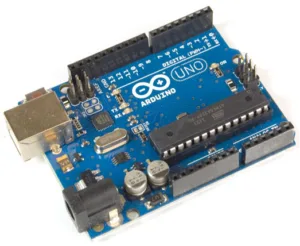 Arduino is an open-source hardware and computer system used to build electronic projects/ devices. The Arduino Development Board consists of many components that together makes it work. Here are some of those main component blocks that help in its functioning: • Microcontroller: This is the heart of the development board, which works as a mini-computer and can receive as well as send information or command to the peripheral devices connected to it. The microcontroller used differs from board to board; it also has its own various specifications. • External Power Supply: This power supply is used to power the Arduino development board with a regulated voltage ranging from 9 – 12 volts. • USB plug: This plug is a very important part of this board. It is used to upload (burn) a program to the microcontroller using a USB cable. It also has a regulated power of 5V which also powers the Arduino board in cases when the External Power Supply is absent. • Internal Programmer: The developed software code can be uploaded to the microcontroller via the USB port, without an external programmer. • Reset button: This button is present on the board and can be used to resets the Arduino microcontroller. • Analog Pins: There are some analog input pins ranging from A0 – A7 (typical). These pins are used for the analog input/output. The no. of analog pins also varies from board to board. • Digital I/O Pins: There are some digital input pins also ranging from 2 to 16 (typical). These pins are used for the digital input/output. The no. of these digital pins also varies from board to board. • Power and GND Pins: There are pins on the development board that provide 3.3, 5 volts and ground through them Arduino consists of tangible components mostly called “Arduino or Microcontroller” and computer softer, or Arduino IDE which is referred to Integrated Development Environment runs in Computer for writing a code to control the physical board.
What is an IDE and what is a Compiler?
An IDE is what they call an Integrated Development Environment, which means as much as “all the tools we need to program in one package”. The fact that all needed tools are combined into one package makes it easier to get started, and the Arduino organization offers this software package for free. Arduino boards are able to read inputs – light on a sensor, a finger on a button and turn it into an output- activating a motor, turning ON a LED… You can tell an Arduino board what you want to do by sending a set of instructions to the microcontroller on the board.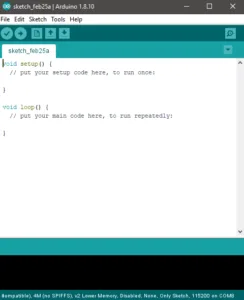 We use the following space for writing the codes and click on the compile button.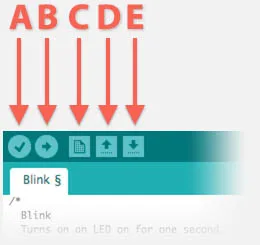
| Useful Arduino Shortcuts | |
| Shortcut button | Purpose |
| A | Verify – Verify Code |
| B | Upload – Verify, Compile and Upload to Arduino |
| C | New – Create New Sketch |
| D | Open – Open existing Sketch |
| E | Save – Save Sketch |
- Inexpensive
- the simple and clear programming environment
- open-source and extensible software…
   void setup () {
     // put your setup code here, to run once:
    }
    void loop () {
     // put your main code here, to run repeatedly:
}- setup: It is called only when the Arduino is powered on or reset. It is used to initialize variables and pin modes
- loop: The loop functions runs continuously till the device is powered off. The main logic of the code goes here.
 1.4 PinMode A pin on Arduino can be set as input or output by using pinMode function.
   pinMode(13, OUTPUT); // sets pin 13 as output pin
pinMode(13, INPUT); // sets pin 13 as input pin digitalWrite (13, LOW); // Makes the output voltage on pin 13, 0V
digitalWrite (13, HIGH); // Makes the output voltage on pin 13, 5V
int buttonState=digitalRead(2); // reads the value of pin 2 in buttonState - The operating voltage is 5V
- The recommended input voltage will range from 7v to 12V
- The input voltage ranges from 6v to 20V
- Digital input/output pins are 14
- Analog i/p pins are 6
- DC Current for each input/output pin is 40 mA
- DC Current for 3.3V Pin is 50 mA
- Flash Memory is 32 KB
- SRAM is 2 KB
- EEPROM is 1 KB
- CLK Speed is 16 MHz

- Pin1 (TX) & Pin0 (RX) (Serial): This pin is used to transmit & receive TTL serial data, and these are connected to the ATmega8U2 USB to TTL Serial chip equivalent pins.
- Pin 2 & Pin 3 (External Interrupts): External pins can be connected to activate an interrupt over a low value, change in value.
- Pins 3, 5, 6, 9, 10, & 11 (PWM): This pin gives 8-bit PWM o/p by the function of analogWrite().
- SPI Pins (Pin-10 (SS), Pin-11 (MOSI), Pin-12 (MISO), Pin-13 (SCK): These pins maintain SPI-communication, even though offered by the fundamental hardware, is not presently included within the Arduino language.
- Pin-13(LED): The inbuilt LED can be connected to pin-13 (digital pin). As the HIGH-value pin, the light-emitting diode is activated, whenever the pin is LOW.
- Pin-4 (SDA) & Pin-5 (SCL) (I2C): It supports TWI-communication with the help of the Wire library.
- AREF (Reference Voltage): The reference voltage is for the analog i/ps with analogReference().
- Reset Pin: This pin is used for reset (RST) the microcontroller.
- Familiarizing with Arduino Interfacing Board
Experiment 1: Controlling the Brightness of an LED
Hardware Required
- 1 x LED
- 1 x resistor
- 1 x Arduino UNO R3
- 1 x breadboard
- 2 x jumper wires
Wiring Diagram
As shown in the diagram below, an LED is connected to pin 2 of the Arduino. To change the brightness of the LED, the program will vary the duty cycle of the PWM signal output of pin 2.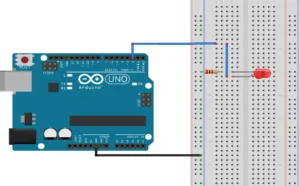 Codes of lighting a LED
   const int pwm = 2 ; //initializing pin 2 as ‘pwm’ variable
    void setup()
    {
         pinMode(pwm, OUTPUT) ;     //Set pin 2 as output
    }
    void loop()
    {
         analogWrite(pwm,25);        //setting pwm to 25
         delay(50);             //delay of 50 ms
         analogWrite(pwm,50);
         delay(50);
         analogWrite(pwm,75);
         delay(50);
         analogWrite(pwm,100);
         delay(50);
         analogWrite(pwm,125);
         delay(50);
         analogWrite(pwm,150);
         delay(50);
         analogWrite(pwm,175);
         delay(50);
         analogWrite(pwm,200);
         delay(50);
         analogWrite(pwm,225);
         delay(50);
         analogWrite(pwm,250);
    }
Experiment 2: LED Brightness Control Using a Potentiometer
In this experiment, we will control the brightness of the LED using a potentiometer. We will the analogRead() function to read a voltage and the analogWrite() function to output a PWM signal, whose duty cycle is proportional to the analog voltage.Hardware Required
- 1 x potentiometer
- 1 x LED
- 1 x resistor
- 1 x Arduino Uno R3
- 1 x breadboard
- 6 x jumper wires
Wiring Diagram
Connect the circuit as shown below. When you rotate the potentiometer, the voltage on pin A0 will change. The program will then change the duty cycle of the PWM signal on pin 2, changing the brightness of the LED.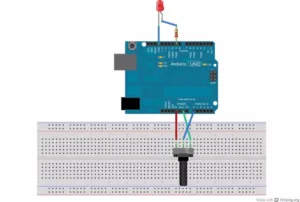 CODES
CODES
   const int pwm = 9;   //naming pin 2 as ‘pwm’ variable
    const int adc = 0;  //naming pin 0 of analog input side as ‘adc’
    void setup ()
    {
        pinMode(pwm, OUTPUT) ;     //setting pin 2 as output
    }
    void loop()
    {
        int adc = analogRead(0) ;   //reading analog voltage and storing it in an integer
        adc = map(adc, 0, 1023, 0, 255);
        /*
            ----------map funtion------------the above funtion scales the output of adc, which is 10 bit and gives values btw 0 to 1023, in values btw 0 to 255 form analogWrite funtion which only receives values btw this range
       */
        analogWrite(pwm, adc) ;
    }
Experiment 3: LED w/ Switch
Now it’s time to talk switches and how they can be incorporated into Arduino projects. A switch is an electrical component that completes a circuit when pushed and breaks the circuit when released. In this project, we will be using a small pushbutton switch to control an LED. Required hardware- Arduino Uno Board
- Breadboard
- Jumper Wires
- USB Cable
- LED
- Push-button switch
- 10k Ohm Resistor
- 220 Ohm Resistor
 Codes of a LED with Pushbutton
   const int buttonPin = 2;// the number of the pushbutton pin
    const int ledPin =  13;      // the number of the LED pin

    // variables will change:
    int buttonState = 0;     // variable for reading the pushbutton status

    void setup() {
      // initialize the LED pin as an output:
      pinMode(ledPin, OUTPUT);
      // initialize the pushbutton pin as an input:
      pinMode(buttonPin, INPUT);
    }

    void loop() {
      // read the state of the pushbutton value:
      buttonState = digitalRead(buttonPin);

      // check if the pushbutton is pressed. If it is, the buttonState is HIGH:
      if (buttonState == HIGH) {
        // turn LED on:
        digitalWrite(ledPin, HIGH);
      } else {
        // turn LED off:
        digitalWrite(ledPin, LOW);
      }
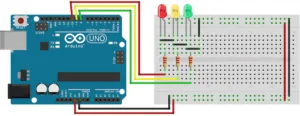
} 
    int red = 10;
    int yellow = 9;
    int green = 8;
    void setup()
     {
        pinMode(red, OUTPUT);
        pinMode(yellow, OUTPUT);
        pinMode(green, OUTPUT);
    }
    void loop()
     {
        // green and red off, yellow on for 3 seconds
        digitalWrite(green, LOW);
        digitalWrite(red, LOW);
        digitalWrite(yellow, HIGH);
        delay(3000);

        // turn off yellow, then turn red on for 5 seconds
        digitalWrite(yellow, LOW);
        digitalWrite(green, LOW);
        digitalWrite(red, HIGH);
        delay(5000);

        // red and yellow on for 2 seconds (red is already on though)
        digitalWrite(green, LOW);
        digitalWrite(red, LOW);
        digitalWrite(yellow, HIGH);
        delay(2000);

        // turn off red and yellow, then turn on green
        digitalWrite(yellow, LOW);
        digitalWrite(red, LOW);
        digitalWrite(green, HIGH);
        delay(3000);
    }
Experiment 5: LCD Screen
An LCD is a liquid crystal display that is able to display text on its screen. In this project, you should see the words “hello, world!” displayed on the screen. The potentiometer is used to adjust the contrast of the display. Parts Needed- (1) Arduino Uno
- (1) USB A-to-B Cable
- (1) Breadboard – Half Size
- (1) 1602 LCD Screen
- (1) Potentiometer
- (16) Jumper Wires
 Codes of LCD display
   /*
      LiquidCrystal Library - Hello World

     This sketch prints "Hello World!" to the LCD
     and shows the time.

      The circuit:
     * LCD RS pin to digital pin 12
     * LCD Enable pin to digital pin 11
     * LCD D4 pin to digital pin 5
     * LCD D5 pin to digital pin 4
     * LCD D6 pin to digital pin 3
     * LCD D7 pin to digital pin 2
     * LCD R/W pin to ground
     * LCD VSS pin to ground
     * LCD VCC pin to 5V
     * 10K resistor:
     * ends to +5V and ground
     * wiper to LCD VO pin (pin 3)

    */

    // include the library code:
    #include <LiquidCrystal.h>

    // initialize the library by associating any needed LCD interface pin
    const int rs = 12, en = 11, d4 = 5, d5 = 4, d6 = 3, d7 = 2;
    LiquidCrystal lcd(rs, en, d4, d5, d6, d7);

    void setup() {
      // set up the LCD's number of columns and rows:
      lcd.begin(16, 2);
      // Print a message to the LCD.
      lcd.print("hello, world!");
    }
    void loop() {
      // set the cursor to column 0, line 1
      lcd.setCursor(0, 1);
      // print the number of seconds since reset:
      lcd.print(millis() / 1000);
    }
Experiment 6: Servo motor
In this project, you will be able to sweep a servo back and forth through its full range of motion. Parts Needed- Arduino Uno
- USB A-to-B Cable
- Breadboard – Half Size
- Servo
- Jumper Wires
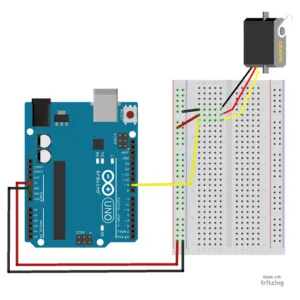 Codes for Servo motor
    // Include the Servo library
    #include <Servo.h>
    // Declare the Servo pin
    int servoPin = 3;
    // Create a servo object
    Servo Servo1;
    void setup()
    {
       // We need to attach the servo to the used pin number
       Servo1.attach(servoPin);
        }
    void loop()
    {
        // Make servo go to 0 degrees
        Servo1.write(0);
        delay(1000);
        // Make servo go to 90 degrees
        Servo1.write(90);
        delay(1000);
        // Make servo go to 180 degrees
        Servo1.write(180);
        delay(1000);
    }
Experiment 7: Tone Melody
The project will use a piezo buzzer/speaker to play a little melody. Parts Needed- Arduino Uno
- USB A-to-B Cable
- Breadboard – Half Size
- Piezo Buzzer/Speaker
- Jumper Wires

   // This code is for testing the active buzzer
    int buzzerPin = 11;// initializing the buzzer pin at pin 11 of Arduino
    void setup(){// Code written in it will only run once

        pinMode(buzzerPin, OUTPUT);// This will set the pin 11 as output
        beep(50); // This will make a beep sound Beep
        beep(50);
        delay(1000);//Adding a delay of 1 sec.
    }
    void loop(){ // Code written in it will run continuously
        beep(50); // This will make a beep sound after every 500 milliseconds
        delay(1000);// Adding a delay of one second.
    }
    void beep(unsigned char delayms) {// Created a function for beep
        analogWrite(buzzerPin, 20); // This will set pin 11 to high
        delay(delayms);// Giving a delay
        analogWrite(buzzerPin ,0);// This will set pin 11 to LOW
        delay(delayms);// Giving a delay
        }
You may also like

Nyereka Tech and Tumba College Explore Opportunities for Collaboration
September 25, 2026

The Launch of our IoT Innovation Hub
May 7, 2026

Partnership with MakerSpace Kigali
May 7, 2026